Last Friday I spent almost an hour copying and pasting the same message to about 40 different contacts, one by one. It was only after I finished that I realized how dumb that was: I could have solved it in 10 minutes by building AI agents with n8n, without writing a single line of code. I got tired of that hollow kind of frustration, so I sat down and built one from scratch, and I’m bringing you the whole walkthrough here.
The hook this time is n8n’s version 2.40 update, released on September 15, which made building agents even more straightforward: required fields are now marked clearly, and you can watch each sub-task the agent runs in real time while it works. But the real reason I’m writing this is different: a lot of people still think “building an AI agent” is something only programmers can do. It isn’t, and I already explained what an AI agent is here before (in Portuguese). Today’s about getting your hands dirty.
1. Hang on, let me explain what n8n is
n8n is a block-based automation tool. You drag little boxes (called “nodes”) onto a canvas, connect them with lines, and each box does one thing: sends a message, checks a website, reads a spreadsheet, calls an AI.
Think of a piece of flat-pack furniture. You’re not cutting wood or measuring with a level: the pieces already come ready-made, numbered, and the manual shows you exactly what fits where. That’s what n8n does for automation. This isn’t programming, it’s assembling.
You can install it for free on your own server (the “Community Edition”), paying only for hosting, which usually runs somewhere between $4 and $12 a month on a simple VPS. Or you can use their paid cloud version, which starts at €20 a month for 2,500 executions. For testing and learning, the free self-hosted route does the job just fine.
2. The pieces of the puzzle that make up an agent
An AI agent in n8n isn’t a single block. It’s five pieces that snap together, and it’s worth knowing what each one is called before you start clicking around.
The trigger (the “Chat Trigger” node) is the front door: it’s what receives the message from whoever is talking to the agent and kicks off the whole flow.
The “AI Agent” node is the brain of the operation, the one that decides what to do with the message that just came in. That’s where you write the system prompt, the instruction that defines how the agent should behave.
The language model (a “Chat Model”, like OpenAI’s or Google’s) is the engine that brain runs on. It plugs into a specific input on the AI Agent node called ai_languageModel, and you’ll need an API key to turn that engine on.
Memory (the “Simple Memory” or “Window Buffer Memory” node) is what lets the agent remember the conversation. Without it, every message you send feels like the first one: tell it your name, and three messages later it’s already forgotten.
And a tool (an “HTTP Request Tool” or a “Code Tool”, for example) is the agent’s hands, what lets it actually act in the real world: look something up, call an API, run a calculation. Without a tool, the agent just talks. It doesn’t do anything. n8n won’t even let you save an AI Agent node without at least one tool attached to it.
3. Step by step: your first agent, no code required
Let’s get to it (if you’ve already read how to build your first AI agent on the blog, in Portuguese, this is the hands-on version, all inside a single tool). With an n8n account (self-hosted or cloud), here’s the path:
First, start a new workflow. You’ll see a blank canvas with an “Add first step” button right in the middle: that’s where it all starts.

Click that button and pick “On chat message” (that’s our Chat Trigger). It comes with a built-in test chat window, so you can talk to your agent without ever leaving n8n.

Next, click the “+” next to the trigger, go to “AI”, and pick “AI Agent”. In the instructions field, write a few sentences describing what you want the agent to do (for example: “you’re an assistant who answers questions about my store’s products, directly and politely”).
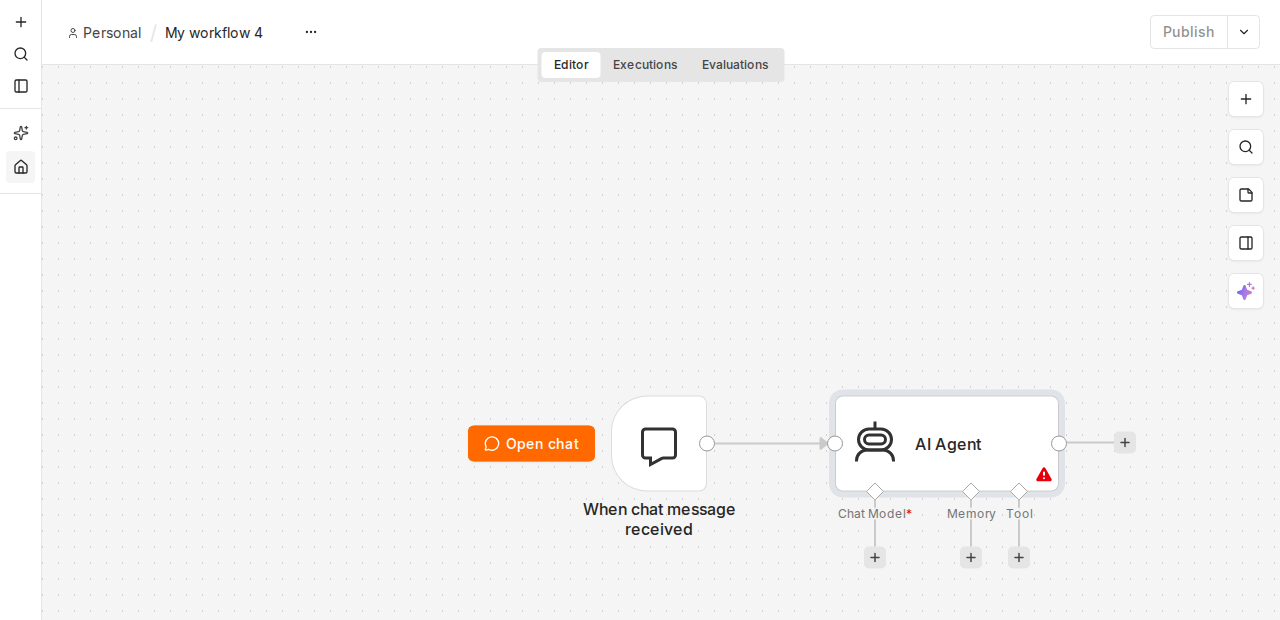
As soon as it lands on the canvas, n8n leaves three empty connectors waiting below the AI Agent: Chat Model, Memory, and Tool. It’s the same picture as the five pieces I showed you above, just inside the real editor this time.
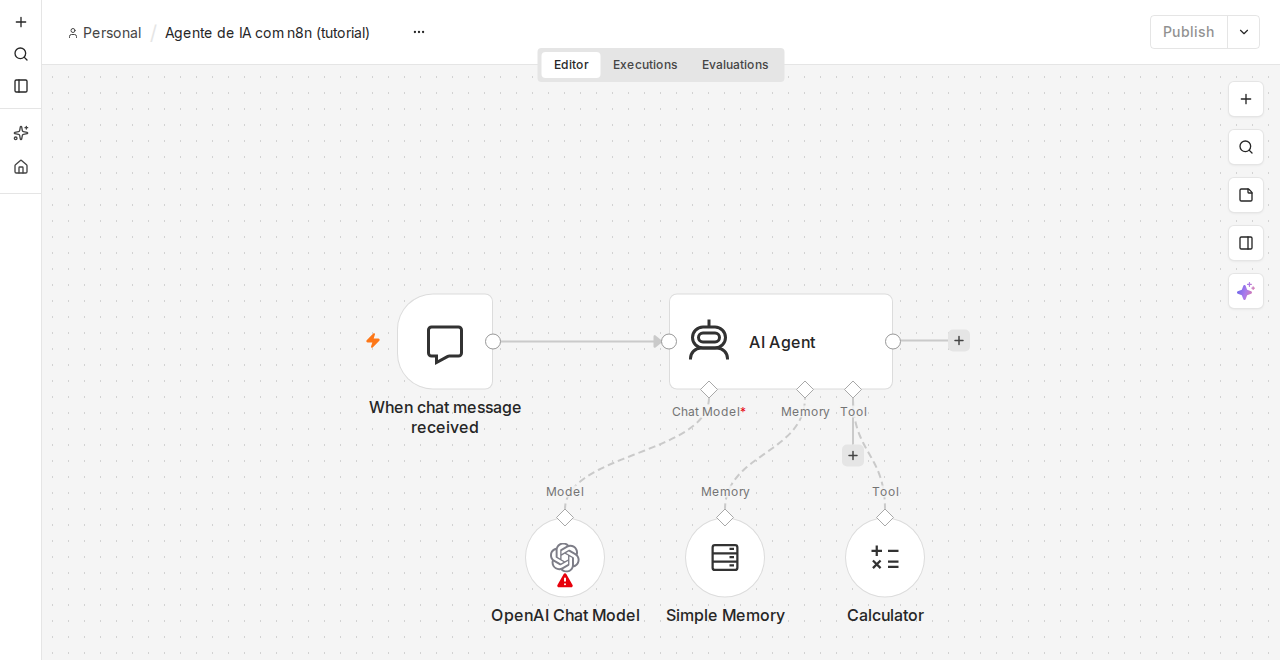
Then, connect a “Chat Model” to the AI Agent’s language model input. Paste your API key in there (OpenAI and Google Gemini both offer limited free usage, which is plenty for testing).
After that, connect a memory node, like “Simple Memory”, so it doesn’t forget what you just told it.
Now comes the part people often skip: connect at least one tool. It could be an “HTTP Request Tool” pointed at some public API, or even something simpler, like a “Calculator Tool”. Here’s what the finished workflow looks like:
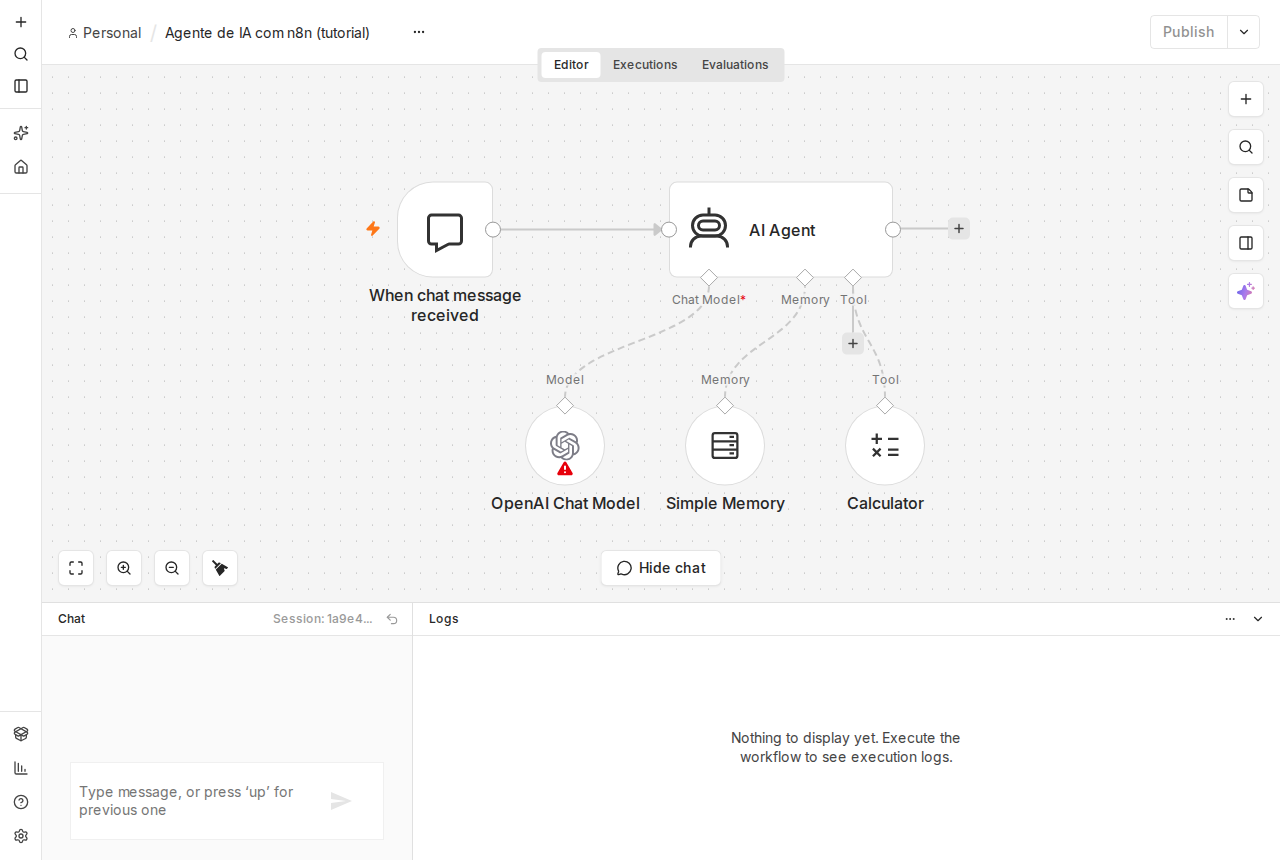
Finally, click “Open chat” to bring up the test panel, and talk to it. If the answer comes out wrong, tweak the system prompt and try again. Only once you’re happy with it do you turn the workflow on so it keeps running on its own, without you needing to open n8n again.
4. What this is actually good for
The most common example I see out there is an agent that answers questions using your own site’s or system’s content: someone asks “what’s new”, the agent queries a content API, filters for what’s most recent, and hands back a formatted answer, all by itself.
But you can go further. Plenty of people are already plugging n8n into WhatsApp Business to build an automated support agent, or using one to organize an email inbox, summarizing what came in and flagging what’s urgent. The advantage of n8n here is that it doesn’t lock you into one single use case: it’s the same tool for all of it, you just change what you plug in.
5. Frequently asked questions
Do I need to know how to code to use n8n?
No, not for the basics. You can build an entire agent just by dragging and connecting nodes. Coding helps when you want to do something very specific inside a code node, but that’s the exception, not the rule.
Is n8n free?
The version you install on your own server (Community Edition) is free with no execution limit: you only pay for hosting. Their cloud version is paid, with plans starting at €20 a month.
What’s the difference between building an agent in n8n and just using something ready-made, like ChatGPT?
ChatGPT comes ready to go, but it’s closed inside its own app. n8n lets you connect an agent to any of your own systems (a spreadsheet, an API, WhatsApp, email) and decide exactly what it’s allowed to do, with which tools.
Does my n8n agent keep running on its own, without me leaving my computer on?
Yes, as long as it’s hosted on a server (yours, via a VPS, or n8n’s own cloud). If it’s running on your own computer, it only works while n8n is open there.
Good automation is the kind you forget exists, because it only shows up when it’s actually solving something for you. Want to give it a try?
Cheers, Fellipe Soares
Subscribe
Get the next articles by email.